Attaching Local VS Code to Running Kubeflow Notebooks⚓︎
Links to external documentation
VS Code's Dev Containers extension allows direct connection to containers running in Kubernetes clusters. This functionality enables access to Kubeflow notebook containers from your local VS Code installation, providing an alternative to browser-based interfaces.
Prerequisites⚓︎
Pod⚓︎
Make sure the pod you want to attach to is running. We recommend providing at least 4GB of memory to the pod. If your pod restarts on connection, try increasing the memory allocation.
kubectl⚓︎
- The
kubectlcommand-line tool should be installed on your local machine
Kubeconfig File⚓︎
- Ensure you have a valid kubeconfig file for the cluster at the default location:
- Linux/macOS:
~/.kube/config - Windows:
%USERPROFILE%\.kube\config
- Linux/macOS:
- VSCode does currently not support custom kubeconfig locations
- If you don't have a kubeconfig file for the cluster, contact your administrator
VS Code Extensions⚓︎
- Install the Dev Containers extension
- For the second method, also install the Kubernetes extension
Attaching to a Kubeflow Notebook Container⚓︎
There are two main methods to attach your local VS Code to a running notebook container:
Method 1: Using the Command Palette⚓︎
- Open VS Code on your local machine
- Press
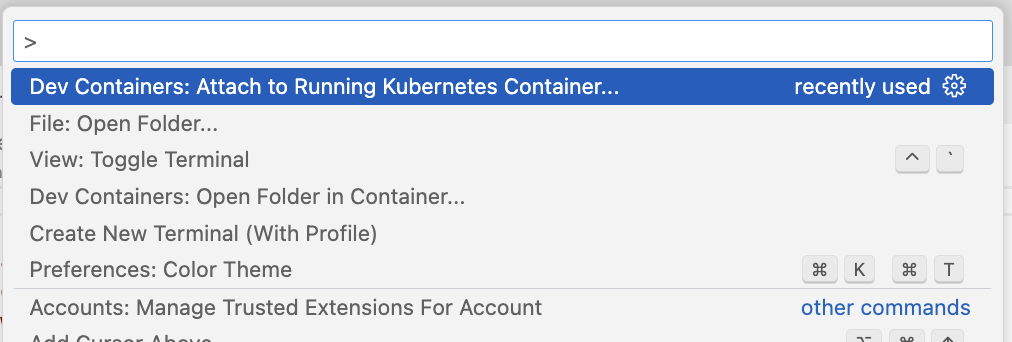
⇧⌘P(macOS) orCtrl+Shift+P(Windows/Linux) to open the Command Palette - Type and select
Dev Containers: Attach to Running Kubernetes Container... - Follow the prompts:
- Select your pod from the list (this will be your Kubeflow notebook pod)
- Select the main container from the list (avoid selecting the istio-proxy container)
Method 2: Using the Kubernetes Extension⚓︎
For a more visual approach:
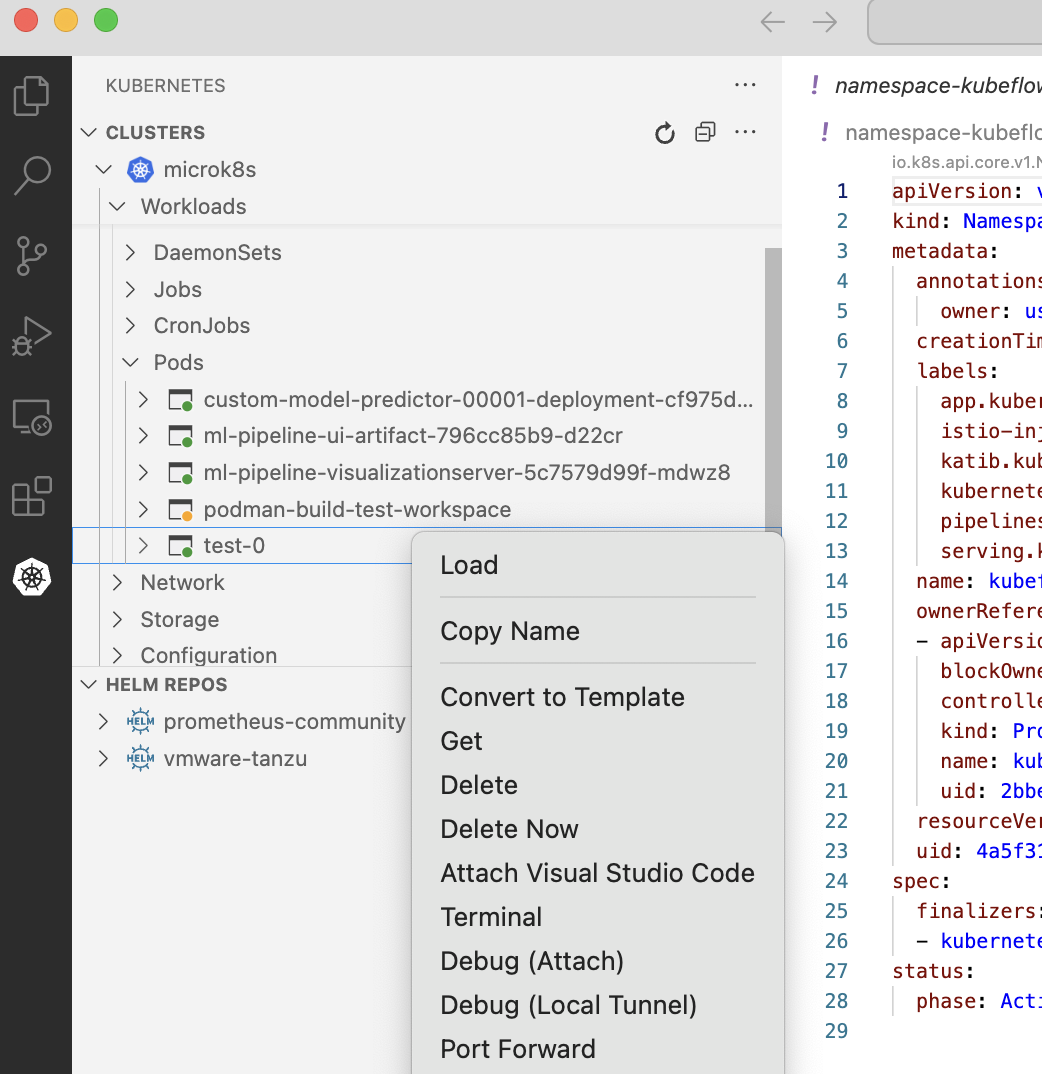
- Select the Kubernetes explorer from the Activity Bar
- Navigate to your namespace and expand the Pod that represents your notebook
- Right-click on the main container (not the istio-proxy container) and select "Attach Visual Studio Code" from the context menu
Connecting to the remote Jupyter Kernel⚓︎
- Setup a remote connection to the container as described above.
- Open the folder '/home/jovyan' in the container with VS Code. This is the home directory of the default user in JupyterHub.
- Open the Extensions view and make sure the "Jupyter" extension is installed in the container.
Currently it seems not possible to connect to the container's default Jupyter kernel from VS Code. But you can create a new notebook server in the container with the terminal and connect to it:
- Open a terminal to the remote container in VS Code and run the following command to start a new Jupyter server: jupyter notebook
- Copy the URL from the terminal output (usually "http://localhost:8889/tree?token=xxx") and use it to manually paste it into the kernel selection in the notebook file.
Beyond Kubeflow Notebook Server Pods⚓︎
While this feature is particularly useful for Kubeflow notebook servers, you can use the same technique to attach to any container running in your Kubernetes cluster that you have access to.