Configure Identity Access Management⚓︎
Master Admin Console⚓︎
Info
This documentation is only for master admin users. If you want to manage users and privileges please refer to the User Management section.
Warning
Identity and Access Management are highly security-relevant and must be accessed with a trusted TLS certificate. Check the maintain section for further information.
To log in to Keycloak (and add and manage your own users), you can go to the
subpath /auth of the prokube domain (e.g. https://prokube.yourdomain.tld/auth). There you can log in with the default master admin user admin and the password you can retrieve from the keycloak-secrets secret within the iam namespace.
The default password can be found under the keycloak_admin_password key.
The command to retrieve the admin password is as follows:
kubectl get secret keycloak-secrets -n iam -o jsonpath='{.data.ADMIN_PASSWORD}' | base64 --decode
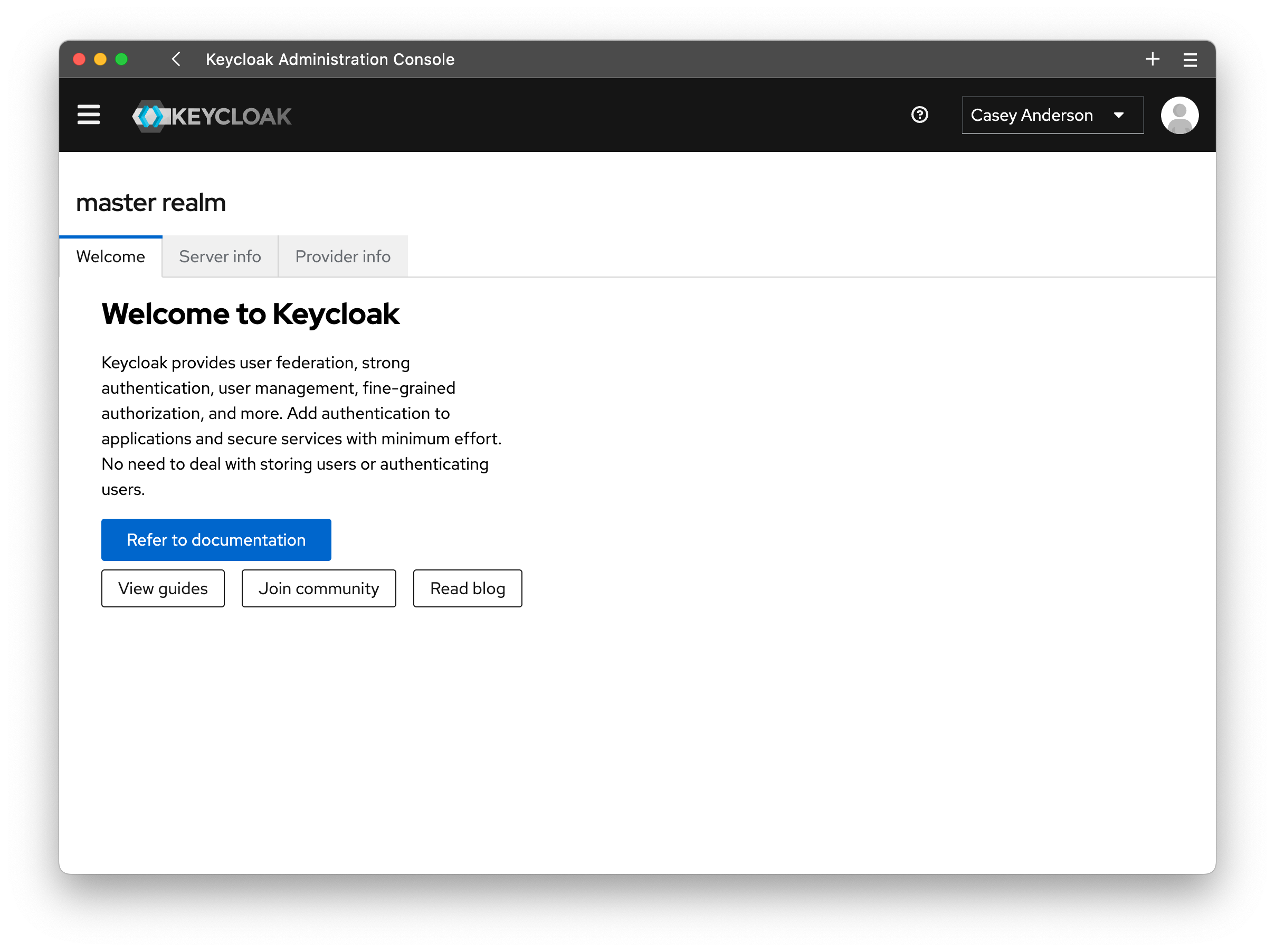
Once logged in, you should be greeted by the Keycloak Admin Console.
Create A Master Admin User⚓︎
To create a master admin user, click on the Users tab on the left. Then click on the "Add User" button.

Note
We strongly recommend adding the Configure OTP and Update Password labels to
required user actions. This requires the user to update their password and set up 2FA, and update their credentials on their first
login.
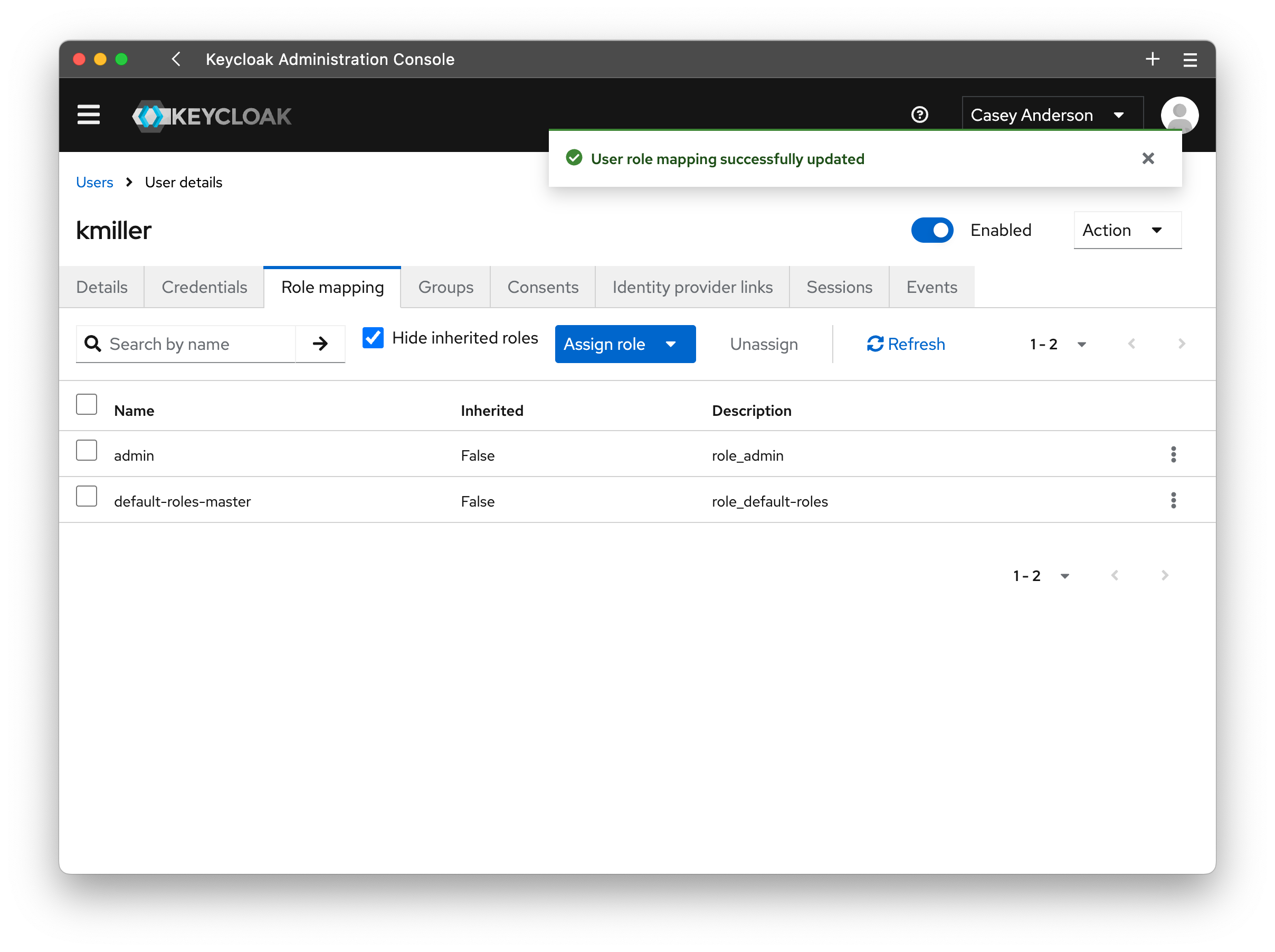
To grant the user admin privileges, they need to be assigned to the realm role admin. If not already open, click on the Users tab and click on the user you created.
In the "User details," open the Role mapping tab and click on the Assign role button. We want to add the realm role admin, so select the entry for realm role and tick
the checkbox for the admin role. Click assign, and you have created a new master admin user.
Warning
Once you have created your first master admin user, delete the temporary admin user.
Create pk-admin User⚓︎
To create an administrator capable of managing profiles and users within the prokube platform we need to create a new user in the prokube realm.
For more details, check out the User Management section. To grant admin privileges, add the
user to the group pk-admin.